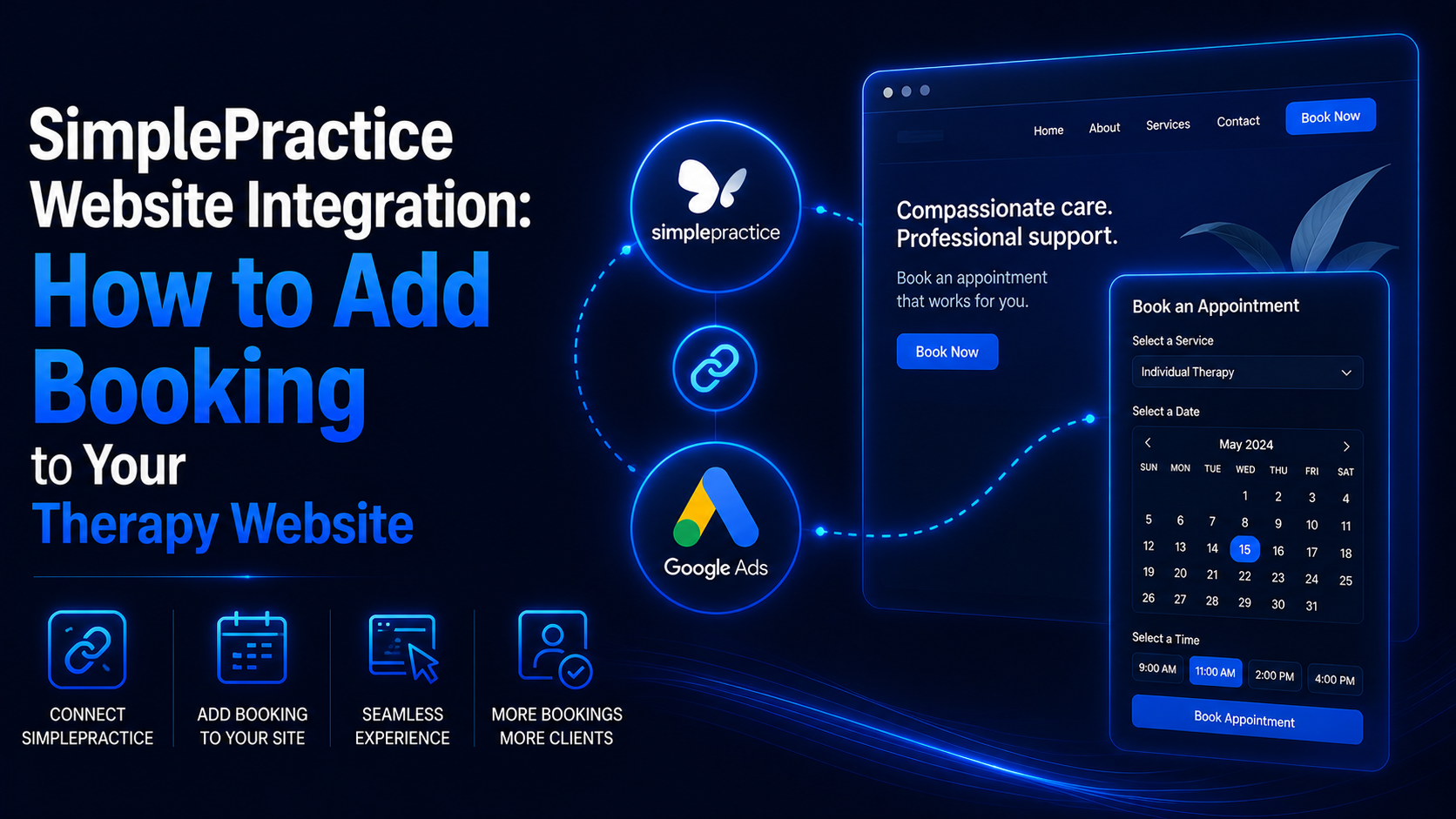
SimplePractice website integration means connecting your SimplePractice scheduler to your practice website so prospective clients can book directly from your pages. The primary method is embedding the appointment request widget, which is available on the Plus plan, using a Custom HTML block in WordPress. A simpler alternative is a button that links to your Client Portal, and that works on any plan.
If your website makes a good impression but visitors still have to leave, hunt for a phone number, or send an email and wait, you are losing inquiries at the exact moment someone decided to reach out. Booking friction is one of the quietest ways a therapy website underperforms. Connecting SimplePractice to your site closes that gap, and it does so with tools SimplePractice already gives you.
SimplePractice is the platform most of your peers already run. By its own May 2026 report, SimplePractice serves more than 245,000 practitioners, and independent clinicians on the platform delivered over 113.6 million sessions in 2025. That scale is the reason this integration is worth getting right. If you build on WordPress, as MHIS does for every client through our website design and development service for therapists, you have full control over how and where that booking flow appears. This guide walks through every method, the setup steps, and the issues that trip therapists up.
What does SimplePractice website integration actually mean?
There are three distinct things people mean when they say they want to connect SimplePractice to their website, and mixing them up is the source of most confusion.
The appointment request widget is a small block of code you place on your site. When a prospective client clicks it, a scheduler opens where they can pick a service and an available time and submit a request. This is the option most therapists want, because booking happens without the visitor leaving your page.
The Client Portal link is simply a button or link that sends visitors to your SimplePractice Client Portal, hosted on a SimplePractice domain such as yourpractice.clientsecure.me. Nothing is embedded. The visitor lands on the portal to request an appointment or access secure features.
The SimplePractice Professional Website is SimplePractice’s own website product, where booking is built in and no embedding is needed. If you use it, you do not need this guide. Most therapists who want a custom, SEO ready, branded WordPress site do not use it, which is exactly why the widget and the portal link matter.
Your public website is your marketing asset. The Client Portal is the secure space where protected health information lives. The integration you are building connects the two without dragging PHI onto your public pages.
Which SimplePractice integration method is right for you?
The right method depends on your SimplePractice plan and how seamless you want the experience to feel.
| Consideration | Embedded appointment widget | Client Portal link button |
|---|---|---|
| Plan required | SimplePractice Plus | Any plan |
| Where booking happens | On your website page | On the SimplePractice portal |
| Setup effort | Moderate (paste code) | Low (link a button) |
| Feels seamless | Yes | Partly, visitor leaves your site |
| Custom styling | Limited | Full control of your own button |
| Best for | Practices on Plus wanting inline booking | Lower plans or a quick, simple option |
For most established practices on the Plus plan, the embedded widget is the better experience and the one this guide focuses on first. If you are on a lower plan or you want the simplest possible setup, the portal link button is a perfectly good fallback that you can upgrade later.
What you need in SimplePractice before you embed anything
The widget will not work if your SimplePractice account is not configured to accept new client requests. Confirm these first, because a blank or dead widget almost always traces back to a missing setting rather than a website problem.
- Set your availability. In SimplePractice, open Availability and create availability blocks. If there is no availability, there are no times for clients to pick.
- Make at least one service bookable by new clients. In Settings, enable online appointment requests and mark the relevant service, such as a free consultation, as bookable by new clients.
- Confirm you are on the Plus plan. The embed code lives on the Plus plan. If you do not see a widget code option, that is why, and you should use the portal link button method instead.
- Decide on a consult offer. A free 15 minute consultation as the bookable service lowers the barrier and gives anxious visitors a low pressure next step.
How to embed the SimplePractice appointment request widget on WordPress
This is the core setup. The steps below reflect SimplePractice’s current interface and their own support documentation.
- Copy the widget code in SimplePractice. Go to Settings, then Scheduling and inquiries, then Widgets. Find the appointment request widget and copy the code. If you run a group practice, copy the clinician specific code for each provider so clients land on the right calendar.
- Open the WordPress page or section where booking should appear. Common choices are the homepage hero area, a dedicated Book or Contact page, and the footer. Edit that page in the WordPress block editor.
- Add a Custom HTML block. Click the plus icon to add a block, search for Custom HTML, and insert it where you want the button to sit. The Custom HTML block matters because the SimplePractice code includes a script tag, and a plain paragraph or text block will not run it.
- Paste the full widget code. Paste the entire snippet, including the anchor tag and the script tag. Do not remove the script tag, or the button will do nothing when clicked.
- Preview, then publish. Use the block editor preview to confirm the Request Appointment button appears. Click it to make sure the scheduler opens and shows your service and available times.
- Clear your cache. If you use a caching plugin or your host caches pages, clear it so visitors see the live widget rather than an older cached version of the page.
If you build with a page builder such as Elementor or Divi rather than the native block editor, use that builder’s HTML element instead of the Custom HTML block, and follow the same rule about keeping the script tag intact.
How to add a Request Appointment button linked to your Client Portal
If you are on a lower plan, or you simply want the fastest setup, skip the embed and link a button to your portal.
- In SimplePractice, find your Client Portal URL under your Client Portal settings. It looks like yourpractice.clientsecure.me.
- In WordPress, add a Button block on the page where you want it.
- Set the button text to something clear and inviting, such as Request an Appointment or Book a Free Consultation.
- Paste your Client Portal URL as the button link, and set it to open in a new tab so visitors keep your site open behind it.
- Publish and test the button on both desktop and mobile.
This method needs no code and no script, so it works on any theme and any plan. The tradeoff is that the visitor leaves your site to complete the request.
SimplePractice widget troubleshooting on WordPress
Most integration problems fall into a short list of causes. Use this table to diagnose quickly.
| Problem | Likely cause | Fix |
|---|---|---|
| Widget does not appear or shows blank | Script tag stripped by a text block or page builder | Use a Custom HTML block or your builder’s HTML element and keep the full code |
| Button appears but nothing happens on click | Missing script tag, or aggressive caching | Re paste the complete code, then clear all caches |
| No services or times show in the scheduler | Service not bookable by new clients, or no availability set | Enable online requests, mark the service bookable, and add availability blocks |
| Cannot find the widget code | Not on the Plus plan | Use the Client Portal link button method instead |
| Widget stopped working after a change | You changed your Client Portal default domain | Remove the old widget code and re embed the current code |
| Button styling clashes with your site | Default widget button class | Replace the spwidget button class with your theme’s button class, per SimplePractice’s customizing guide |
If you would rather not touch code, caching, or class names at all, this is exactly the kind of setup MHIS handles as part of a build. We connect SimplePractice, test it across devices, and make sure the booking flow matches your brand. Talk to our team about a done for you integration.
Can you customize how the SimplePractice widget looks?
Partly. You have real control over the button, and limited control over the scheduler itself.
You can change the button text from the default Request Appointment to any wording you prefer, such as Book a Free Consultation. You can also match the button to your site’s styling by replacing the default spwidget button class in the code with the class your theme uses for buttons, which SimplePractice documents in its customizing guide.
What you cannot fully restyle is the scheduler interface that opens after the click. That view is served and branded by SimplePractice, including its accent colors, and you should not expect to remove all of that branding. For most practices this is a fair tradeoff, because the button, which is what visitors see on your page, can be made to look native to your site.
Is the SimplePractice appointment widget mobile-friendly?
Yes. The appointment request widget is responsive and works on phones and tablets, which matters because a large share of people searching for a therapist do so on a phone. Two things keep it clean on mobile. First, place the button where it is easy to tap, not buried at the bottom of a long page. Second, make sure your theme is not forcing the widget’s container into a fixed width that squeezes it on small screens. Always test the full booking flow on your own phone before you consider the integration finished.
Where to place booking on your therapy website for the most inquiries
Adding the widget is only half the work. Placement decides how many people actually use it.
Put a booking option above the fold on your homepage so it is visible without scrolling. Repeat it at the end of every service and specialty page, where intent is highest, because a visitor who just finished reading about your trauma work is ready to act. Keep the wording low pressure. Book a Free Consultation converts anxious visitors better than a blunt Book Now. Offer the consultation as the bookable service so the first step feels like a conversation, not a commitment.
Booking is step one. Being found is step two, and a booking ready site does nothing if the right clients never reach it. If you want that traffic, our SEO service for therapists gets your pages ranking for the searches your ideal clients actually use. For a fuller picture of how these pieces fit together on a specialist build, see our guide to psychologist website development.
Frequently asked questions
How do I add SimplePractice to my website?
Copy the appointment request widget code from Settings, then Scheduling and inquiries, then Widgets in SimplePractice, and paste it into a Custom HTML block on your WordPress page. On lower plans, add a button that links to your Client Portal URL instead.
Can I embed the SimplePractice widget on WordPress?
Yes. Use a Custom HTML block, or your page builder’s HTML element, so the widget’s script tag runs. A plain text or paragraph block will not execute the code.
Does SimplePractice provide a booking button?
Yes. The appointment request widget includes a Request Appointment button, and you can change its text and match it to your site’s button styling. The embed code is available on the Plus plan.
How do I link my SimplePractice Client Portal from my site?
Add a Button block in WordPress and set its link to your Client Portal URL, which looks like yourpractice.clientsecure.me. Set it to open in a new tab. This method works on any plan.
Is the SimplePractice widget mobile friendly?
Yes. The widget is responsive and works on phones and tablets. Place the button where it is easy to tap and test the full flow on your own phone.
Can I customize the SimplePractice widget styling?
You can change the button text and match the button to your theme by swapping the default class. You cannot fully restyle the scheduler that opens after the click, since SimplePractice serves and brands that view.
Final thoughts
SimplePractice website integration turns your site from a brochure into a booking engine. On the Plus plan, embed the appointment request widget in a Custom HTML block and let visitors book without leaving your page. On any plan, link a clear button to your Client Portal. Either way, place booking where intent is highest, keep the wording low pressure, and test every path on mobile.
The technical steps are straightforward, but the details, the script tag, the caching, the settings inside SimplePractice, the styling classes, are where practices lose time and inquiries. If you would rather have it built and tested correctly the first time, MHIS builds custom WordPress websites for therapists with SimplePractice fully integrated from day one. See how we build integration ready therapy websites and book a strategy call when you are ready.